Talkdown.ai
The Talkdown.ai App (also called the Alert Reaction App) connects to your BrainFrame server and turns BrainFrame alarms into real-world actions. When an alarm triggers, it can send email alerts, play sounds and voice messages, and fetch video clips from your network video recorder (NVR).
To open the Talkdown.ai App, type the IP address of the BrainFrame OS server in a browser to open the BrainFrame Web Client. Once connected, click the Developer button at the bottom left to bring up the Developer References menu, then click Talkdown.ai App.
Note
Before you use the app, install and configure BrainFrame and the Talkdown.ai App by following the deployment guide.
Open the app at http://<your-server-ip>:3500. The tabs on the left are described below. They fall into three groups:
monitoring, alarm reactions, and system configuration.
Monitor
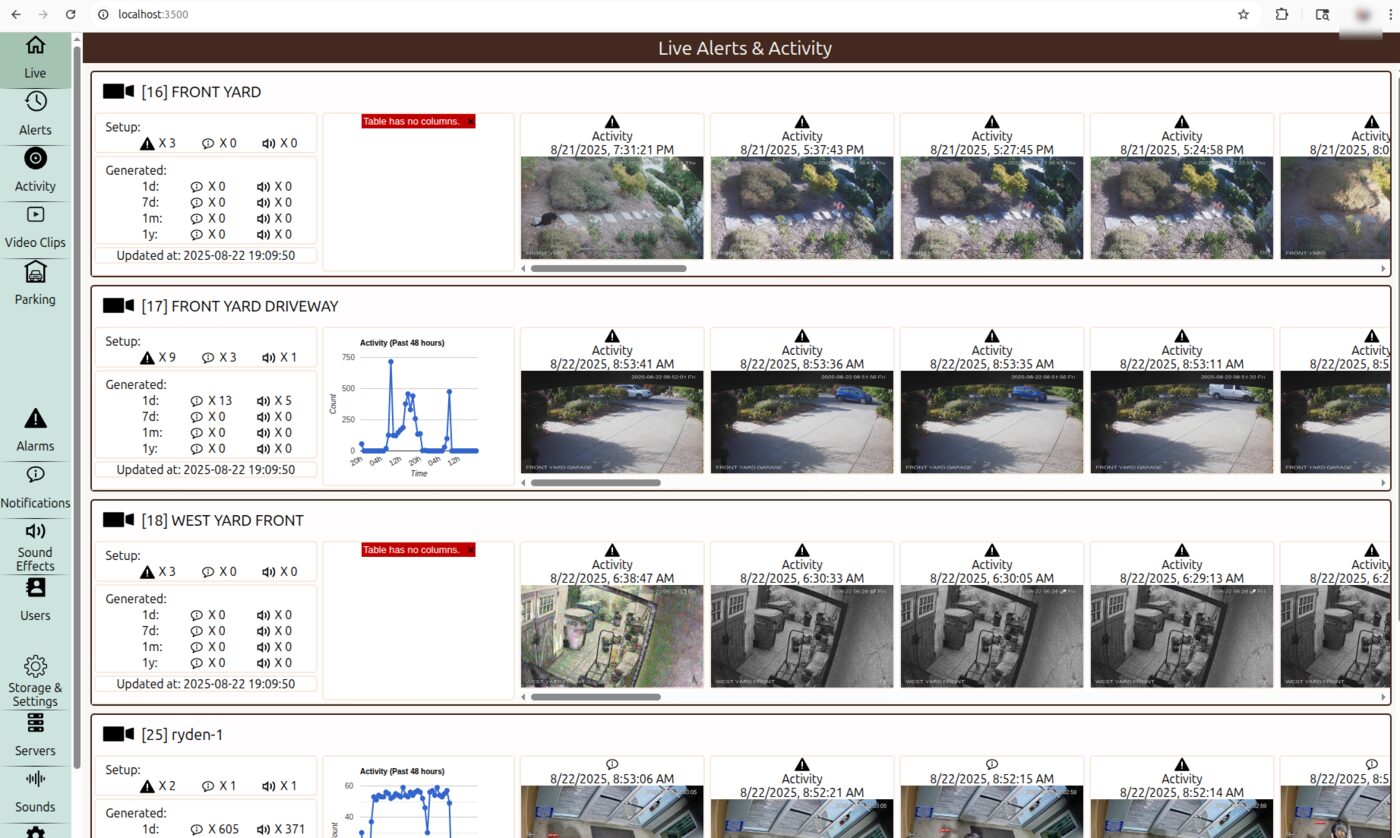
Live
The Live tab is the main dashboard. It gives a real-time overview of the activity, notifications, and sound effects for each of your camera streams.
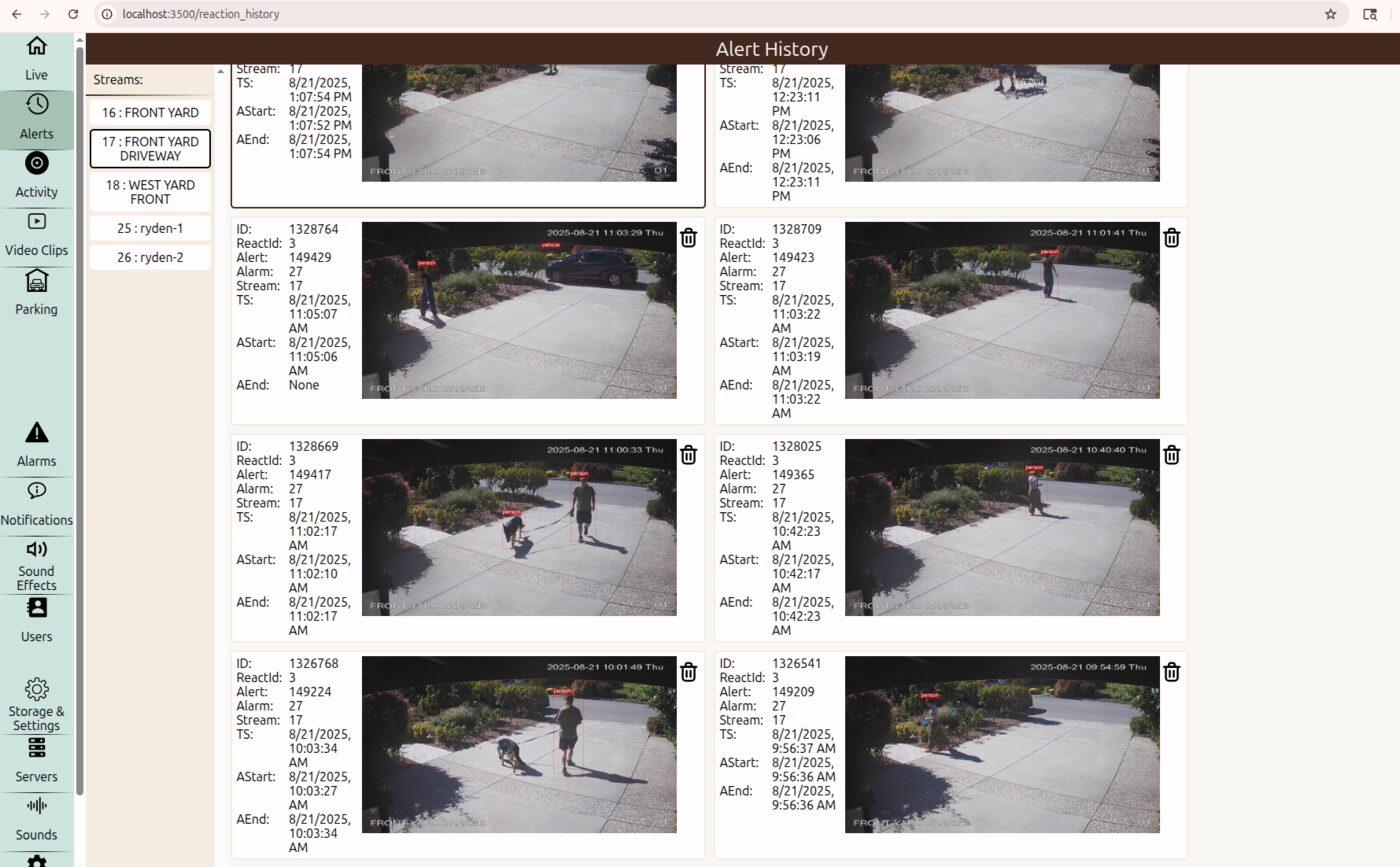
Alerts
The Alerts tab is the log of every alert that was triggered, with all of its notifications and sound effects. Filter by camera, reaction type, and date to look into a specific event.
Activity
The Activity tab shows every event that BrainFrame detected, such as an object entering or leaving a zone, including events that did not trigger a reaction. Use it to review everything the system has seen.
Video Clips
The Video Clips tab lists the video segments recorded from your NVR when an alert was triggered. To use it, set up the recorder in Config NVR.
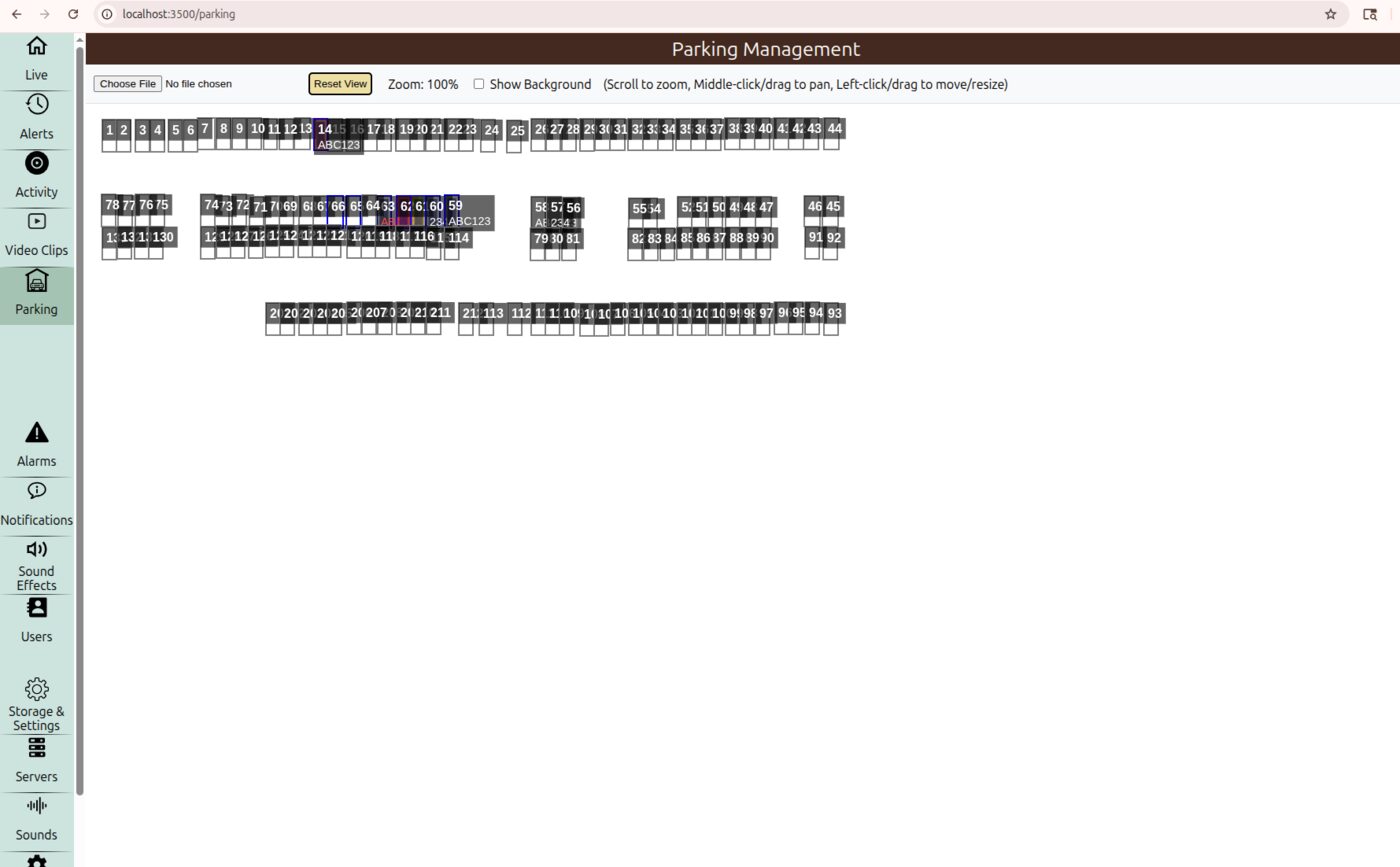
Parking
The Parking tab lets you upload a map of a parking lot and mark individual parking spaces to monitor their status. See Maps & Locations.
Set Up Reactions
Alarms
The Alarms tab is where you connect a BrainFrame alarm to the actions you want. Each row is an alarm from BrainFrame. Click the plus (+) button on a row to add one or more notifications or sound effects to it. The row expands to list them, and you can edit or delete each one.
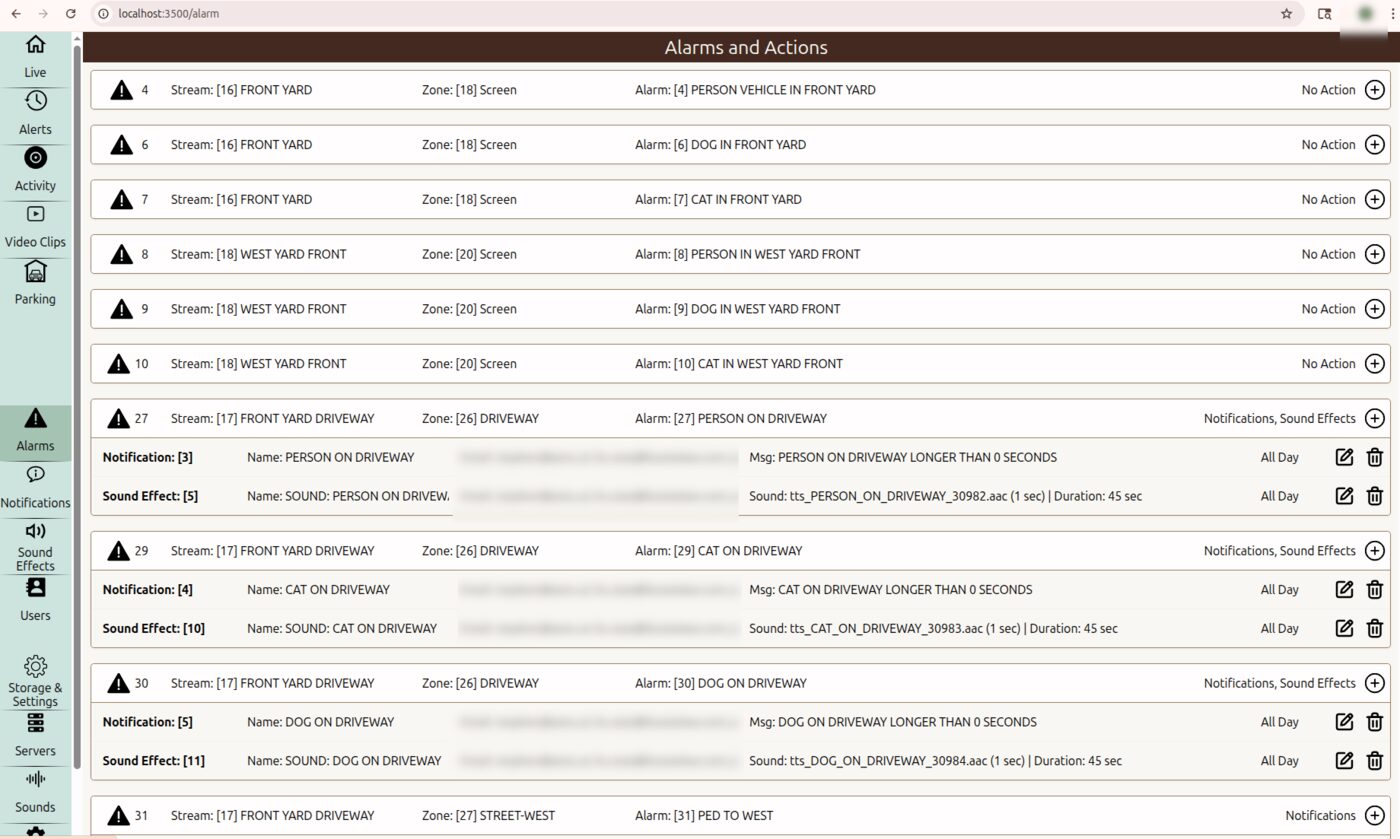
Alarms are created in BrainFrame. See Alarms.
Notifications and Sound Effects
You create notifications and sound effects from the Alarms tab. The Notifications and Sound Effects tabs list every action that you configured, across all alarms.
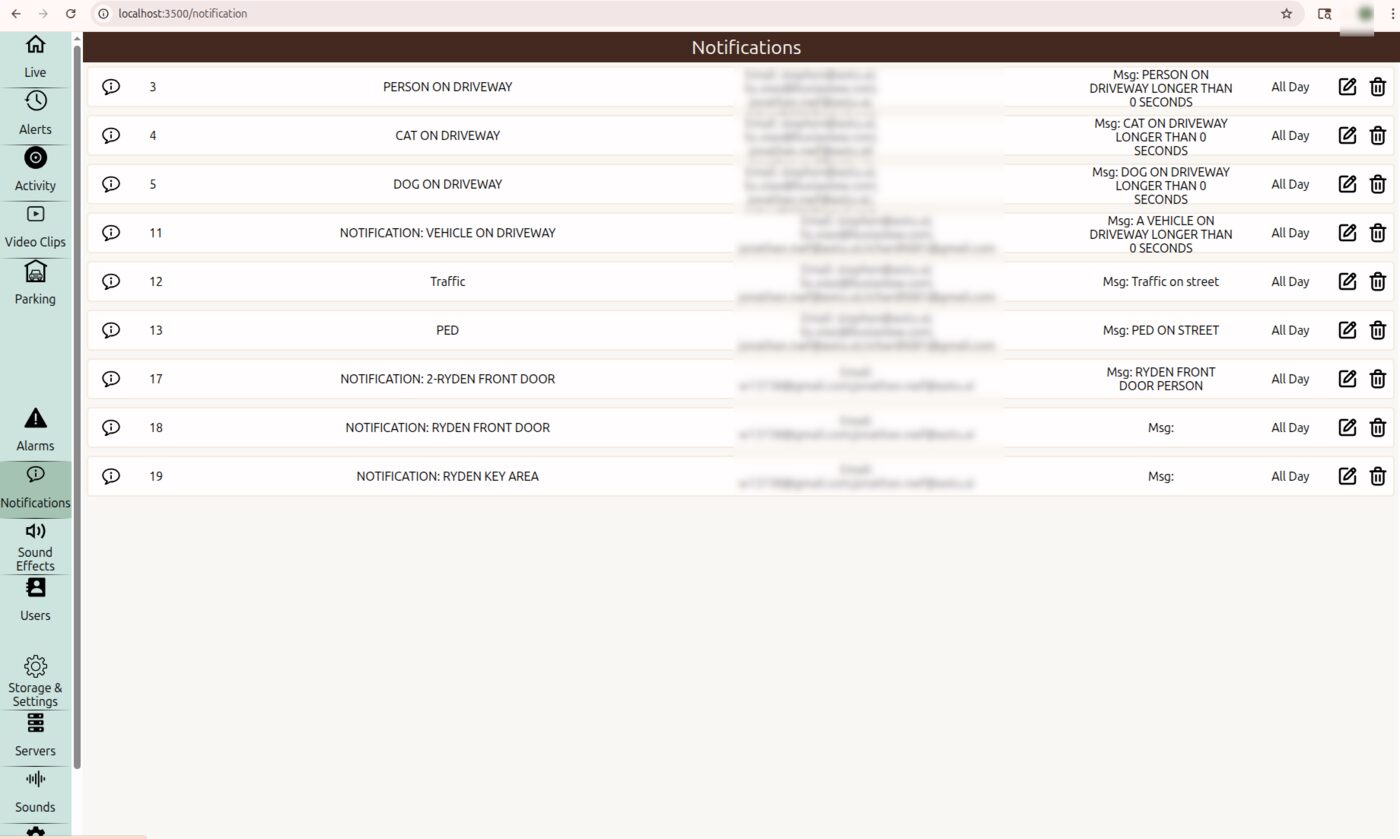
For a four-stage notification and deterrence workflow, see AWDE Four-Stage Deterrence.
Users
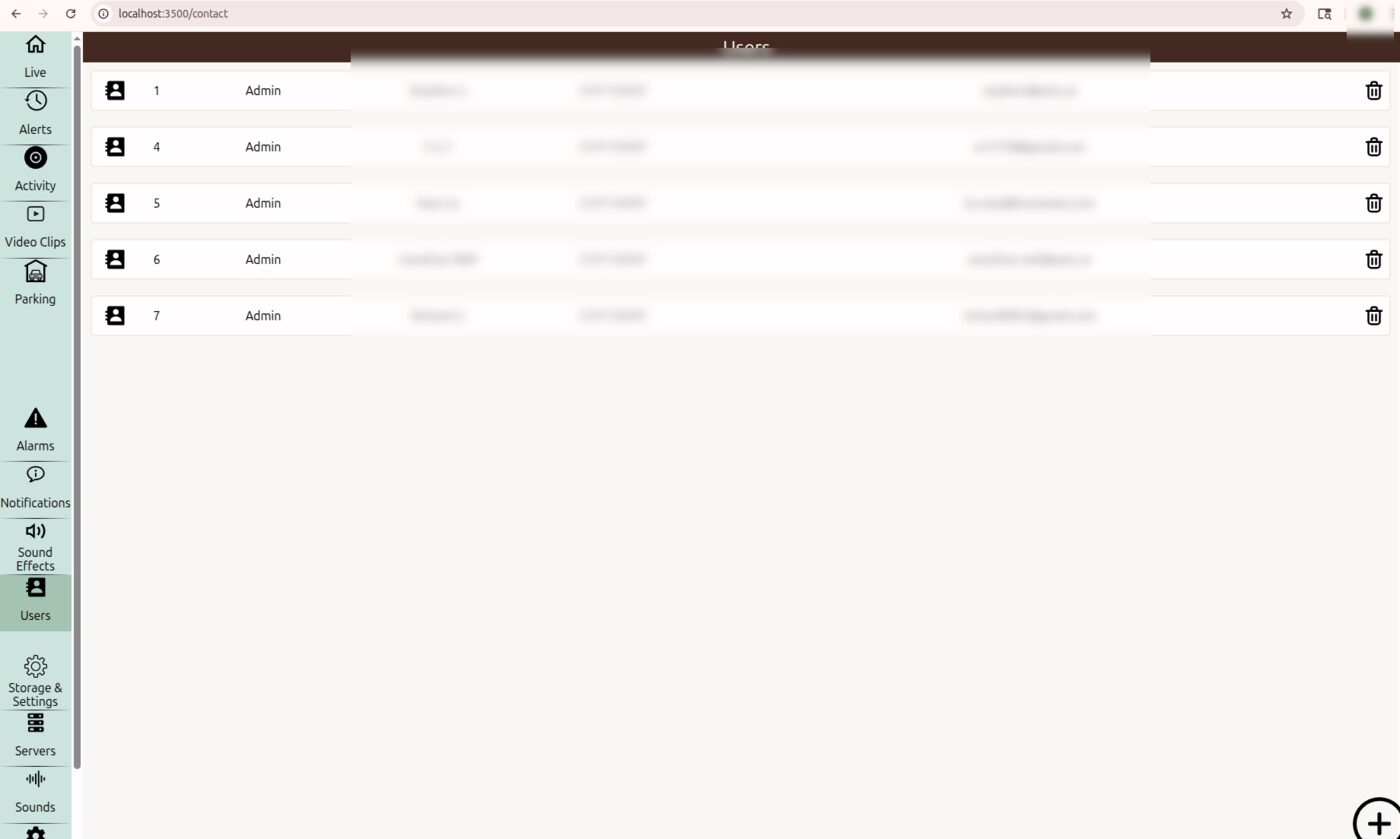
The Users tab is a directory of contacts, with names, phone numbers, and email addresses. You can select these contacts as the recipients of notifications.
Sounds
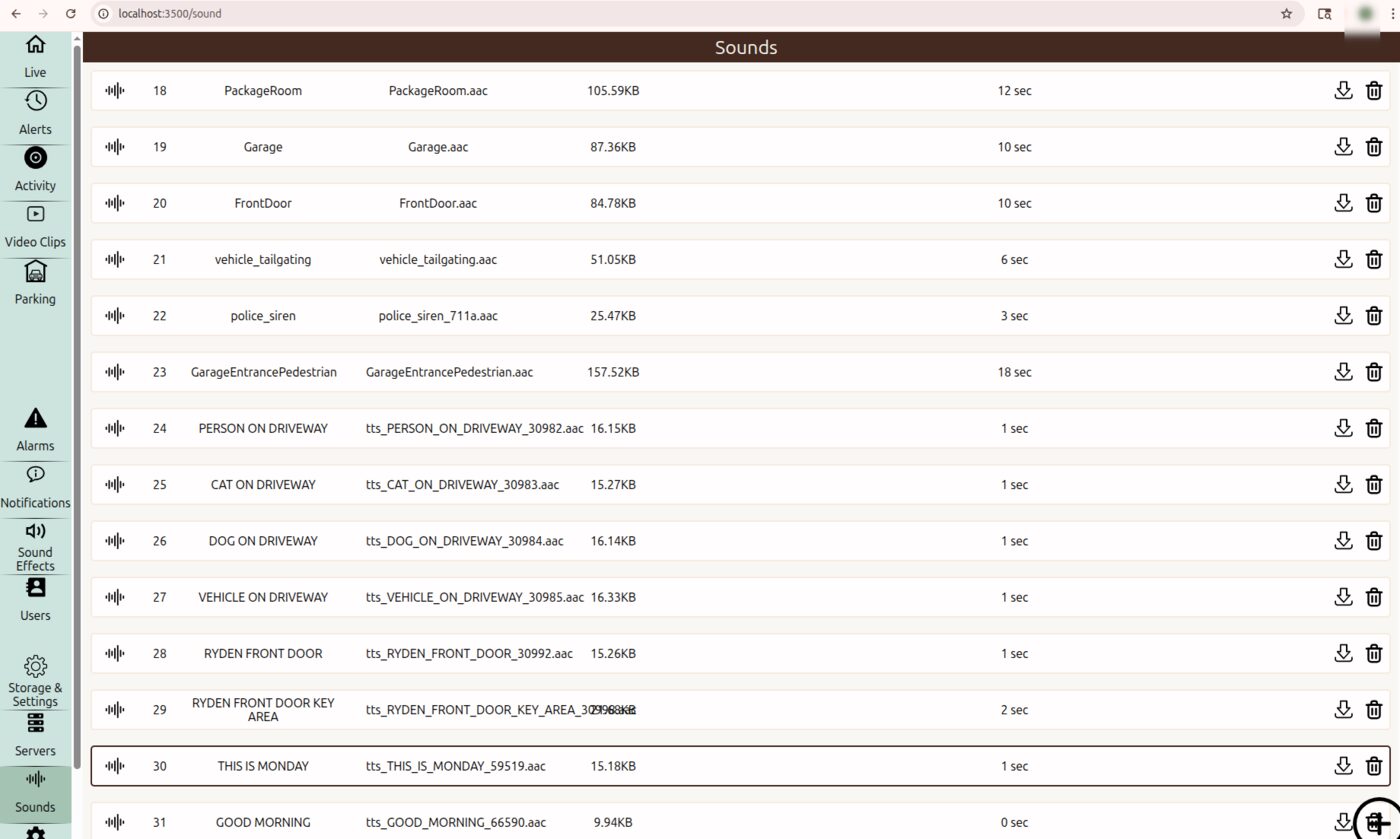
The Sounds tab is the library of audio clips. Upload your own sound files, such as a warning message, or use text-to-speech to generate audio from text. Sound effects play these clips. See Config Sound and Voice Alerts for SOC.
Configure the System
Storage & Settings
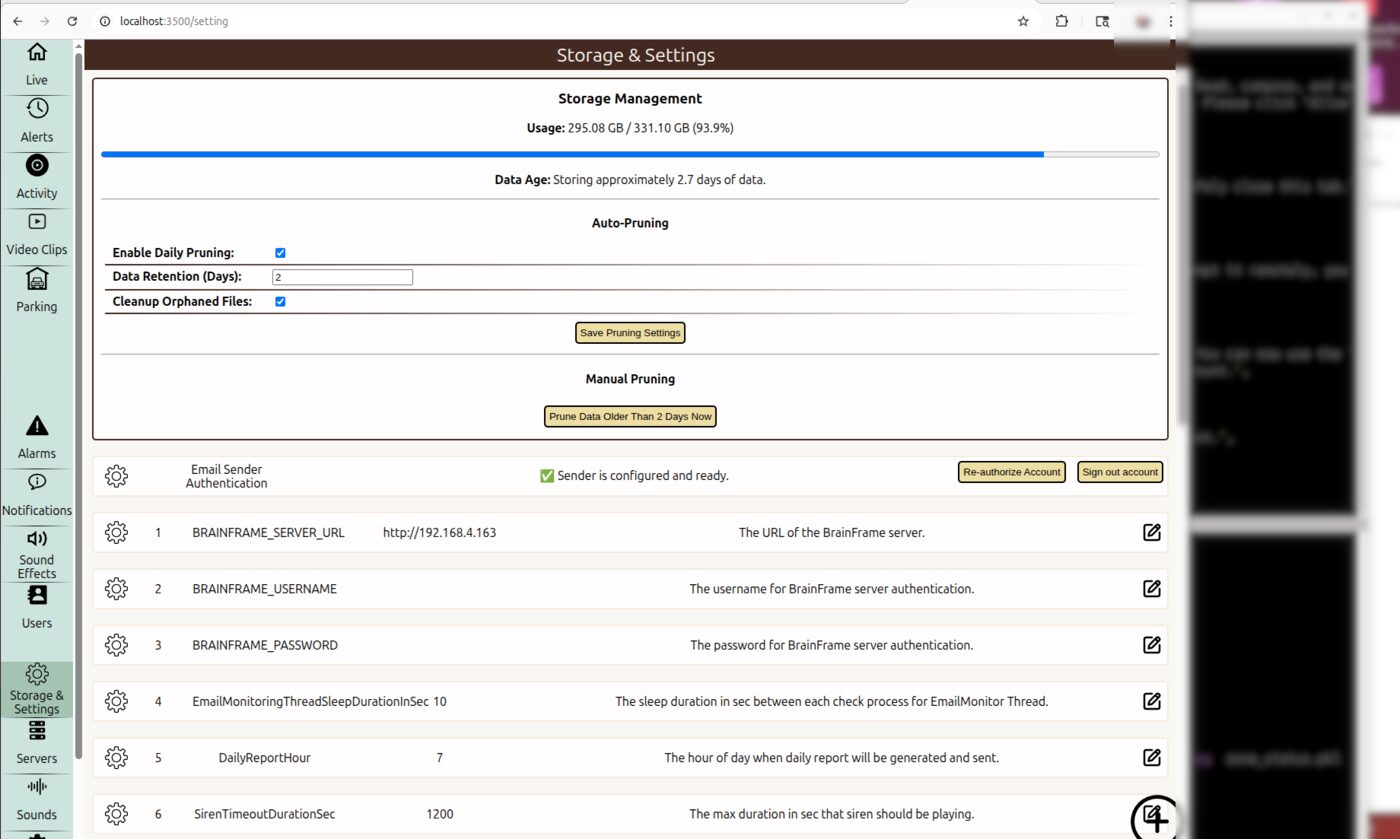
The Storage & Settings tab holds the system-wide settings.
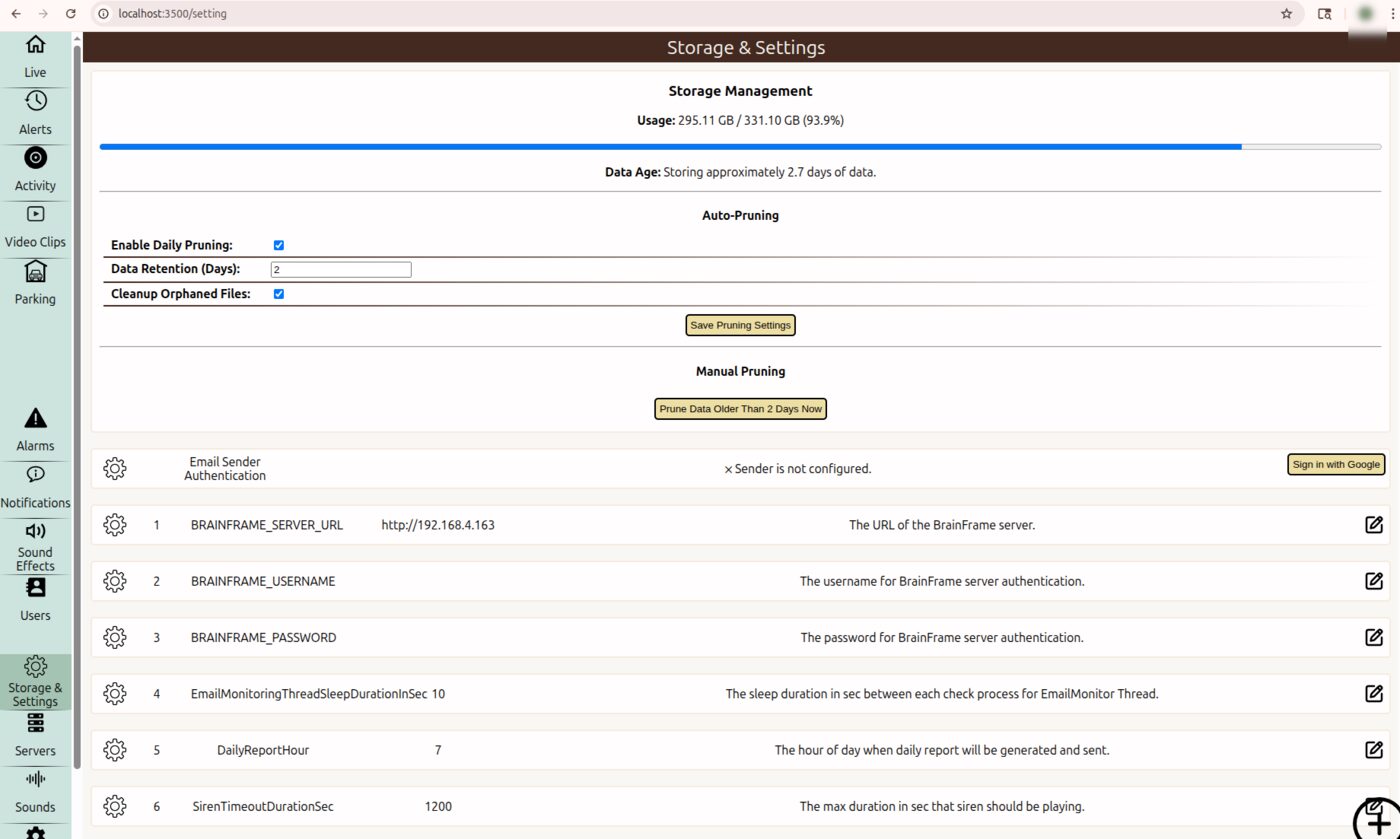
- Storage management and auto-pruning: shows the disk use and how many days of data are kept. Turn on daily pruning, set the number of days of data to keep, and choose whether to clean up orphaned files. You can also prune old data immediately. See Maintenance.
- Site name: set a unique site name. It is used as the prefix of the subject line of every email.
- Video recorder: if you have an NVR, set its IP address and model. See Config NVR.
- Volume: set the master volume for each type of audio, such as sirens and voice announcements.
- Email sender: you must authorize the app to send email. See below.
Authorize email sending
-
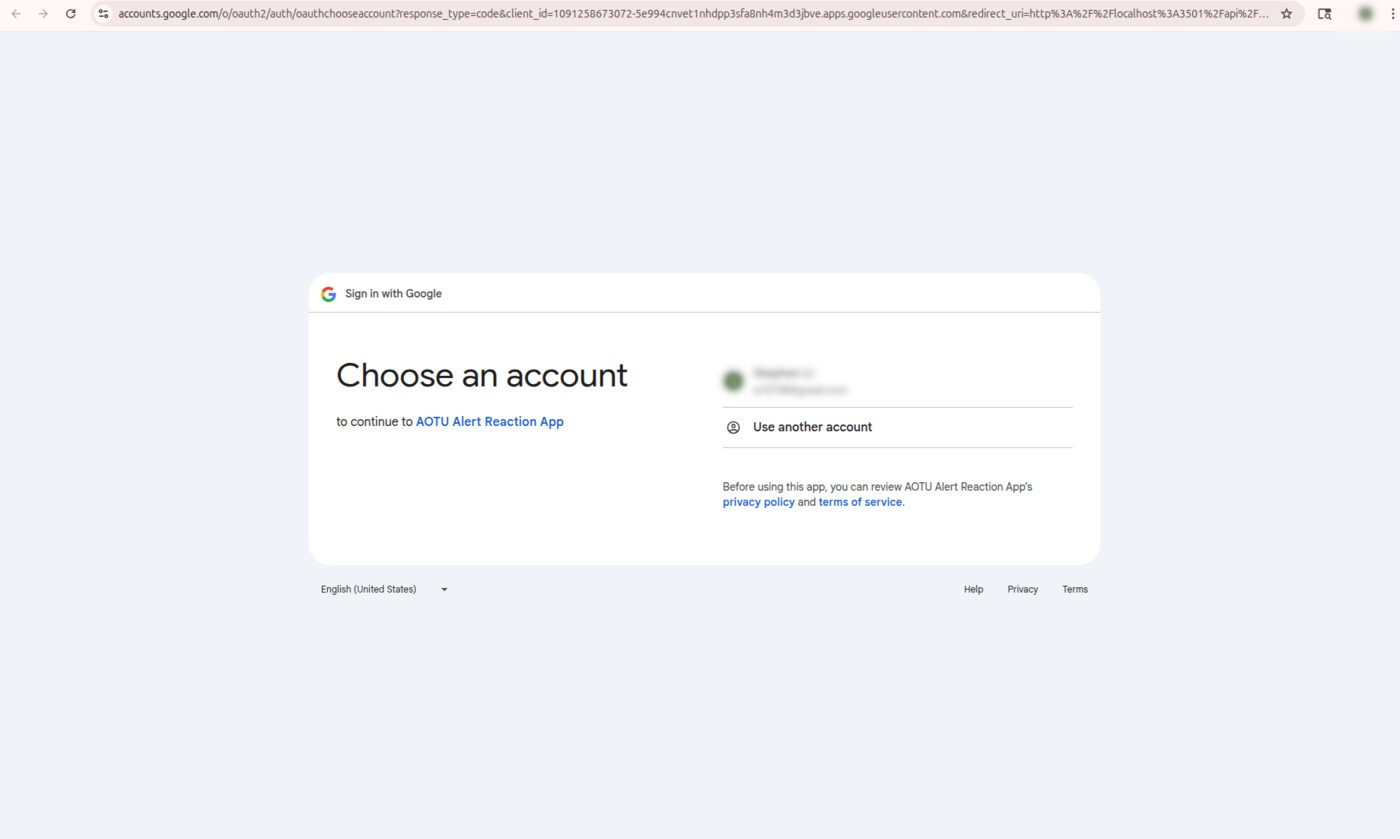
Click Sign in with Google. A new browser tab opens and asks you to choose an account.
-
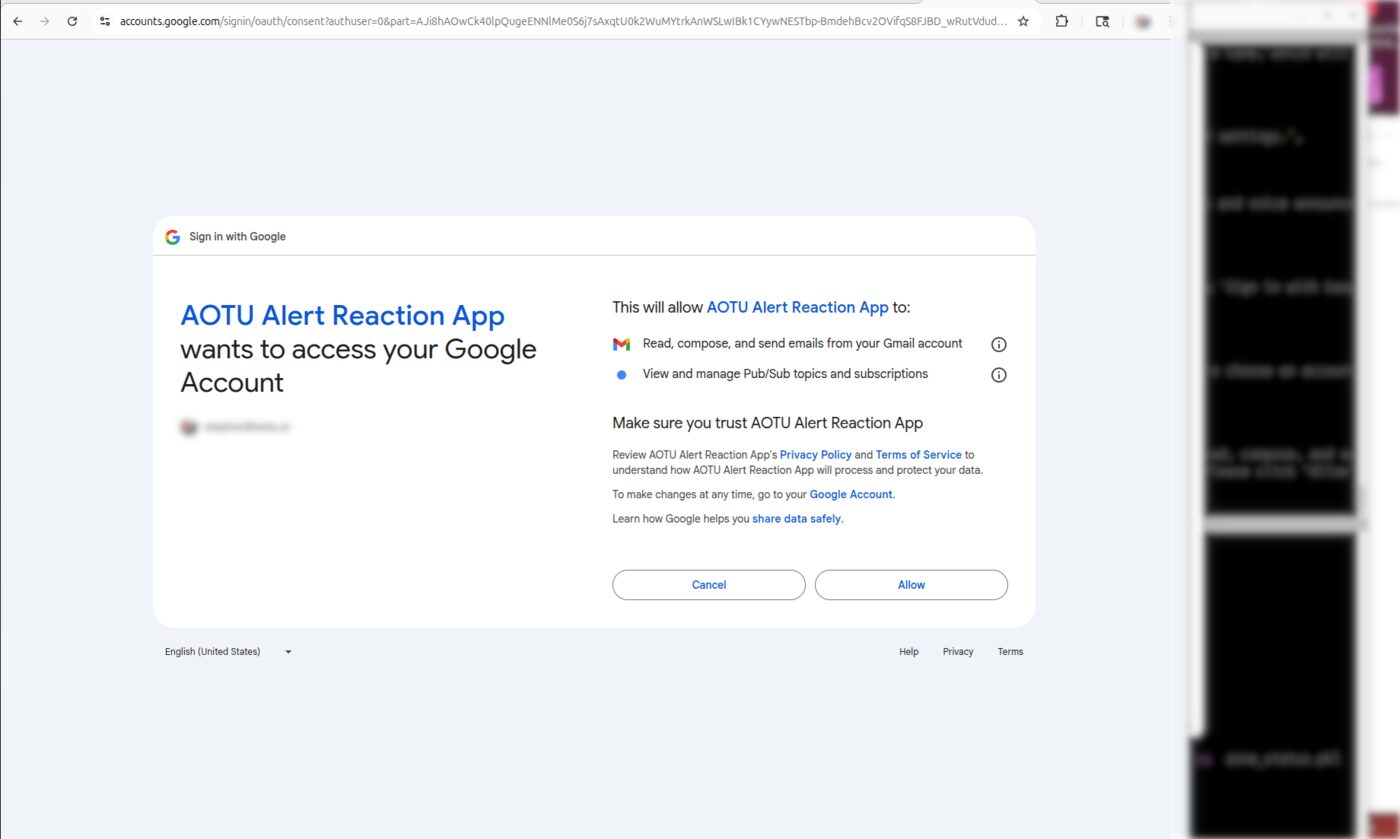
Google asks for permission to read, compose, and send email from your Gmail account, and to view and manage Pub/Sub topics and subscriptions. Click Allow.
-
A page confirms that authentication was successful. Close the tab.
Warning
Complete the authorization on the server itself, using http://localhost:3500. If you do it from another computer,
Google shows an "Access blocked" error. For the files you need first, see Prepare
and Config Gmail.
When it succeeds, the status changes to Sender is configured and ready. Use Re-authorize if the credentials expire. Use Sign out to disconnect the account. You are asked to confirm first.
Servers
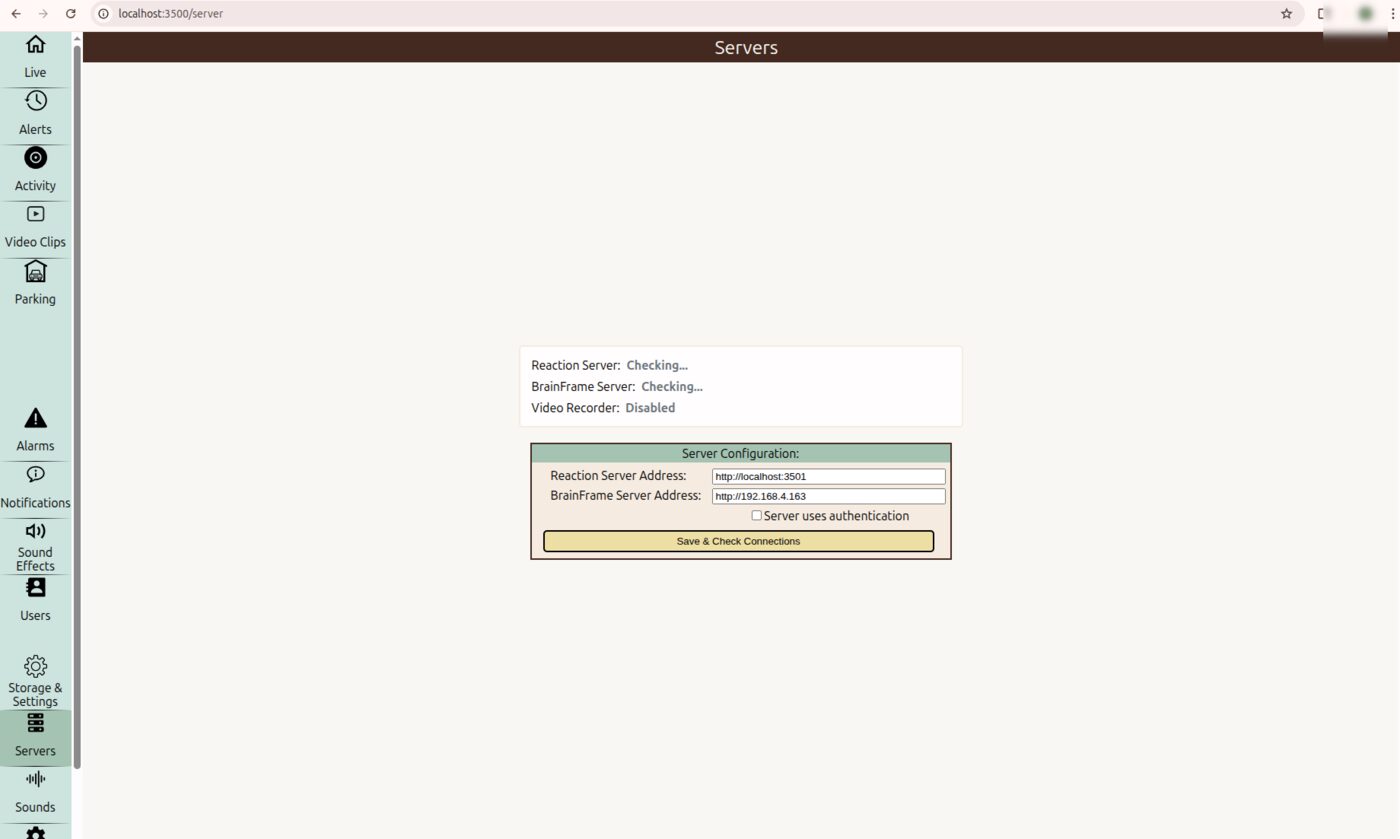
The Servers tab sets the addresses of the Alert Reaction backend and your BrainFrame server, and shows the state of each connection. See Connect to BrainFrame Server.
Language
Switch the user interface between English and Chinese.
Licenses
Lists the licenses of the open-source libraries that the app uses.