AI Marketplace
Launch the VisionCapsules® AI Marketplace by clicking the BrainFrame-OS Apps button in the BrainFrame web client. See BrainFrame Applications for all the applications.
The AI Marketplace is a web application for managing the capsules of a BrainFrame server. It is installed with BrainFrame. Use it to:
- Browse and download capsules from several marketplaces: the public AOTU capsules, the model routers, the AOTU partner capsules (with a login), and the Ultralytics YOLO models.
- Package a model into a capsule directly, without writing capsule code: download an Ultralytics YOLO model, or provide your own.
- Upload capsule files (
.cap) that you built or received. - Load capsules into the BrainFrame server, and unload them.
- Enable or disable loaded capsules, and change their options.
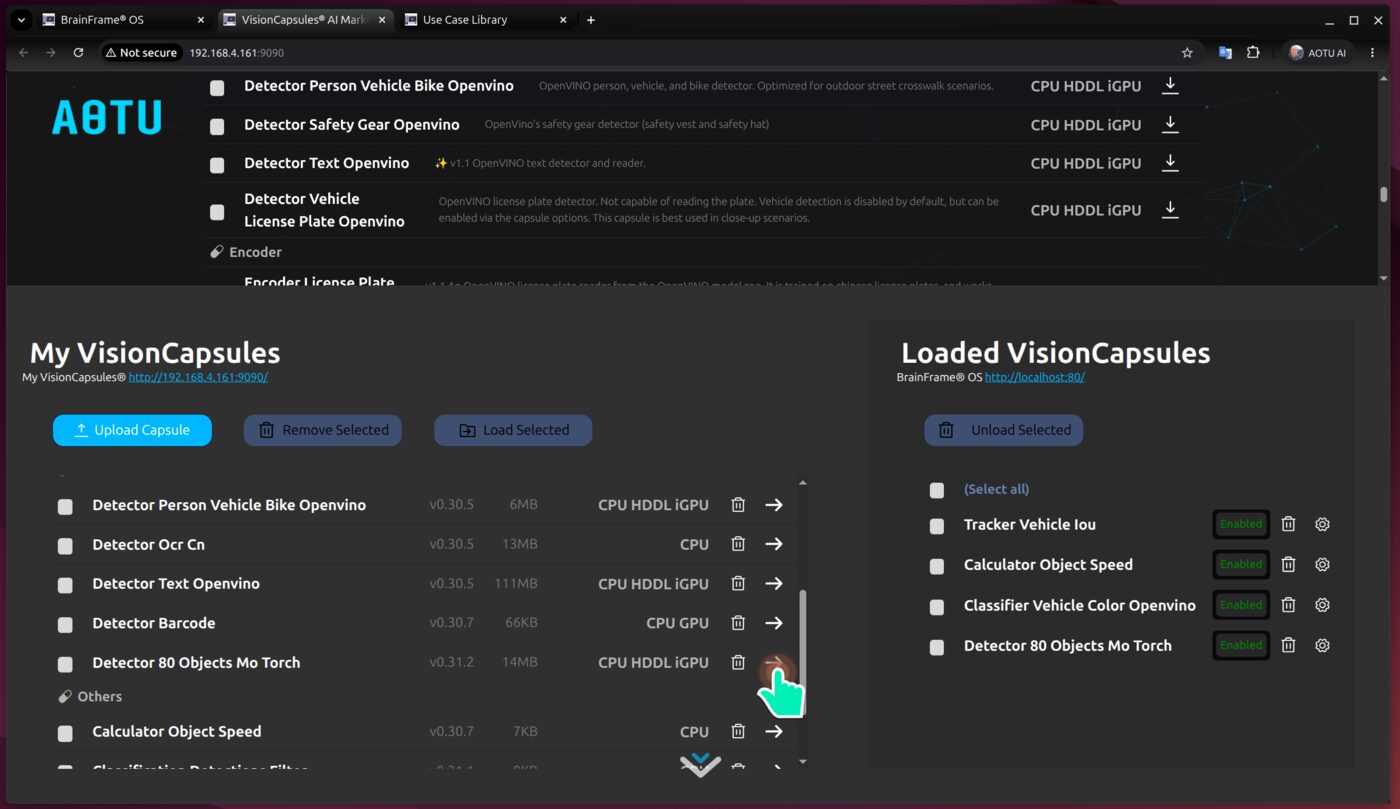
For what a capsule is, see Capsule Options. To write your own capsule, see the VisionCapsule documentation.
Open the AI Marketplace
To open the AI Marketplace, type the IP address of the BrainFrame OS server in a browser to open the BrainFrame Web Client. Once connected, click the Apps button at the top left to bring up the BrainFrame® Applications menu, then click VisionCapsules® AI Marketplace.
You can also open it directly in a browser:
http://<your-server-ip>:9090
The page has two parts. The top part, Explore VisionCapsules, is the marketplace. Scroll down, or click the arrow at the bottom of the page, to open the lower part, which has two lists:
| List | Contents |
|---|---|
| My VisionCapsules | The capsule files that are stored on the server. These are capsules you downloaded or uploaded. They are not yet running. |
| VisionCapsules running in BrainFrame OS | The capsules that the BrainFrame server has loaded. Only loaded capsules can run on streams. |
Note
The two lists in the lower part need a browser window at least 1460 pixels wide. On a narrower window they are replaced by a warning.
A capsule moves through three steps: download it from the marketplace into My VisionCapsules, load it into BrainFrame, and then enable it for your streams.
Choose a Marketplace
The source menu at the top of Explore VisionCapsules selects which marketplace to browse:
| Source | What it lists |
|---|---|
| AOTU Public | The capsules that AOTU publishes. |
| AOTU Private | The capsules that AOTU offers to its partners. The site asks for a user name and password. |
| Model Routers | The capsules that send detections to a cloud AI model, such as Claude or ChatGPT. They have their own page. |
| Ultralytics Public | The YOLO model weights that Ultralytics publishes. They are models, not capsules. |
The link beside the menu opens the website of the source (AOTU Private shows no link; it shows the login instead). The sources that publish capsules also have a version menu: the latest version is selected first, and an older version lists the capsules that were published for it. For Ultralytics Public, the menu next to it selects a model family (YOLO26, YOLO11, YOLOv8, ...).
Filter the List
The box next to (Select all) filters the list as you type. A row stays when every word you typed is found in it:
- in its name, description, group or hardware, as you typed it (upper and lower case do not matter):
poselists the pose models,yolo11 segthe YOLO11 segmentation models,smallthe small models; - or as a whole class name in the classes it detects (its Output Detections, also shown in its info popup):
carlists the models and capsules that detect a car, andtraffic lightthe ones that have that class. A part of a class name does not count, sosmalldoes not list the models of the aerial class "small vehicle"; typesmall vehicleto find them.
Every Ultralytics model has its Output Detections: the 80 COCO classes for the models trained on COCO, the 15 aerial classes
for oriented boxes, person for pose, the 1,000 ImageNet classes for classification, the 601 Open Images V7 and the 365
Objects365 classes for those variants, and the 4,585 classes of the YOLOE prompt-free models. The info popup shows the first
25 names and how many there are. YOLO-World and the YOLOE models with a vocabulary of your own can detect any class you name,
so their Output Detections say so, and they are listed for any class name that the lists know. Select all selects only
the rows that are shown. The x in the box, or the Escape key, clears the filter.
Download Capsules
The marketplace lists the capsules grouped by type: Classifier, Detector, Encoder, Tracker, OCR, and Others. Each row shows the capsule name, its description, and the hardware it runs on. Capsules marked with ✨ are recommended as production-ready. To install a capsule manually instead, follow the tutorial Installing a Capsule for step-by-step instructions.
| Hardware | Meaning |
|---|---|
CPU |
Runs on any processor. |
GPU |
Runs on NVIDIA GPUs. |
iGPU |
Runs on Intel integrated graphics, through OpenVINO. |
HDDL |
Runs on MyriadX devices, through the OpenVINO HDDL plugin. |
Hover over a capsule name to see its details, such as the input it needs and the detections it produces.
To download:
- Click the download icon at the end of a row to download one capsule.
- Or tick the check boxes of several capsules, and click Download Selected.
Downloaded capsules appear in My VisionCapsules. A capsule that is already there can not be downloaded again. Remove it first if you want to download it again.
The version column of My VisionCapsules shows two versions, separated by a bar, for example v0.32.0 | v0.1. The
first is the BrainFrame release that the capsule was downloaded from. The second is the release version of the capsule
itself, which is the version that starts its description on the marketplace. A capsule with no version in its
description shows the release only.
Note
The marketplaces are read over the internet, so the server needs internet access to show them and to download capsules. On a server with no internet access, upload capsule files instead, as described below. See Offline Deployment.
Package a Model into a Capsule
The AI Marketplace can build a capsule from a model, with no capsule code. It does this on your own server and puts the result in My VisionCapsules, where you load it like any other capsule. There are two ways to start:
- A model that Ultralytics publishes. Choose Ultralytics Public, click the download icon of a row (or tick several rows and click Download & Package Selected), answer the questions of the dialog, accept the license, and click Download & Package. The AI Marketplace downloads the weights, converts them, and packages the capsule. Models that are not packaged yet are shown greyed out, with the reason.
- Your own model. In My VisionCapsules, click Package Model. Choose the model source, the model version,
the task, and the model format, then provide the file: the OpenVINO files (
.xmland.bin), a PyTorch weights file (.pt), or an ONNX file. Enter the capsule name and version, accept the license, and click OK: the button is highlighted as soon as everything is filled in.
Packaging needs the packaging service to run next to the AI Marketplace; a dialog shows a warning if it is not running. The first model also installs the converter, which takes several minutes. Which models are supported, what each capsule reports, and the license of the Ultralytics weights are described in Ultralytics Public. The capsule templates, the choice of classes, and how many classes to bake into YOLO-World and YOLOE models are described in YOLO Capsules.
Upload a Capsule
To add a capsule file that you have on your computer:
- In My VisionCapsules, click Load Capsule.
- Choose the
.capfile. - Enter the Version, for example
v0.30.8. This is required, and is used to keep different versions of the same capsule apart. - Select the Chipset that the capsule supports.
CPUis always selected. AddiGPU,HDDL, orGPUif the capsule uses them. - Click the upload button of the dialog.
A file with the same content as a capsule already in My VisionCapsules is rejected as a duplicate.
Load Capsules into BrainFrame
In My VisionCapsules:
- Click the right arrow at the end of a row to load one capsule.
- Or tick several capsules and click Run Selected.
The capsule is sent to the BrainFrame server. Loading can take a while, because the server prepares the model. A progress message is shown, and the page cannot be used until it finishes. When it is done, the capsule appears in VisionCapsules running in BrainFrame OS.
If the BrainFrame server can not be reached, loading fails with an error. Check that the server is running.
Manage Loaded Capsules
Each loaded capsule has these controls:
| Control | Action |
|---|---|
| Enabled / Disabled | Turn the capsule on or off for all streams. A disabled capsule stays loaded. |
| Trash icon | Unload the capsule from BrainFrame. |
| Gear icon | Open the capsule's options, to change its settings. |
To unload several capsules, tick them and click Unload Selected.
The options are the same as those in the Web Client: a choice among a few values is a drop-down list, and an option that does not apply to the current choice (for example the model list of a provider that is not selected) is hidden. Changes take effect for all streams. To set options for one stream only, use the stream's capsule configuration in the Web Client. See Capsule Options.
Note
Capsules that BrainFrame loaded from its capsule directory, rather than through the AI Marketplace, are shown in the list too. They can be enabled, disabled, and configured, but they can not be unloaded here. To remove them, remove the files from the capsule directory.
Remove Capsules from My VisionCapsules
To delete a capsule file from the server, click the trash icon in its row, or tick several and click Remove Selected. This removes the file only. A capsule that is already loaded stays loaded until you unload it.
Where the Data Is Kept
The AI Marketplace runs as the marketplace service in the BrainFrame docker-compose.yml. It listens on port 9090.
The downloaded capsule files and the list of capsules are stored in the BrainFrame data volume, in the
volumes/marketplace directory, and are kept when BrainFrame is restarted.
The AI Marketplace manages the BrainFrame server that it runs alongside, and connects to it through the BrainFrame REST API.