Getting Started with the BrainFrame Devkit
First Steps
Getting a License
The first thing you will see on your devkit will be a prompt to upload a license.
To get a free no-expiration license, follow the instructions here. The devkit will need to have internet in order to validate the license. After following the instructions, you should see a client that is preloaded with a demonstration video.
Preloaded Demo
The BrainFrame installation on the devkit is a preloaded demo that has a video stream, several preloaded VisionCapsules, zones, an alarm, and a realtime dashboard visualization. After uploading a license, the client will open up and look like this:
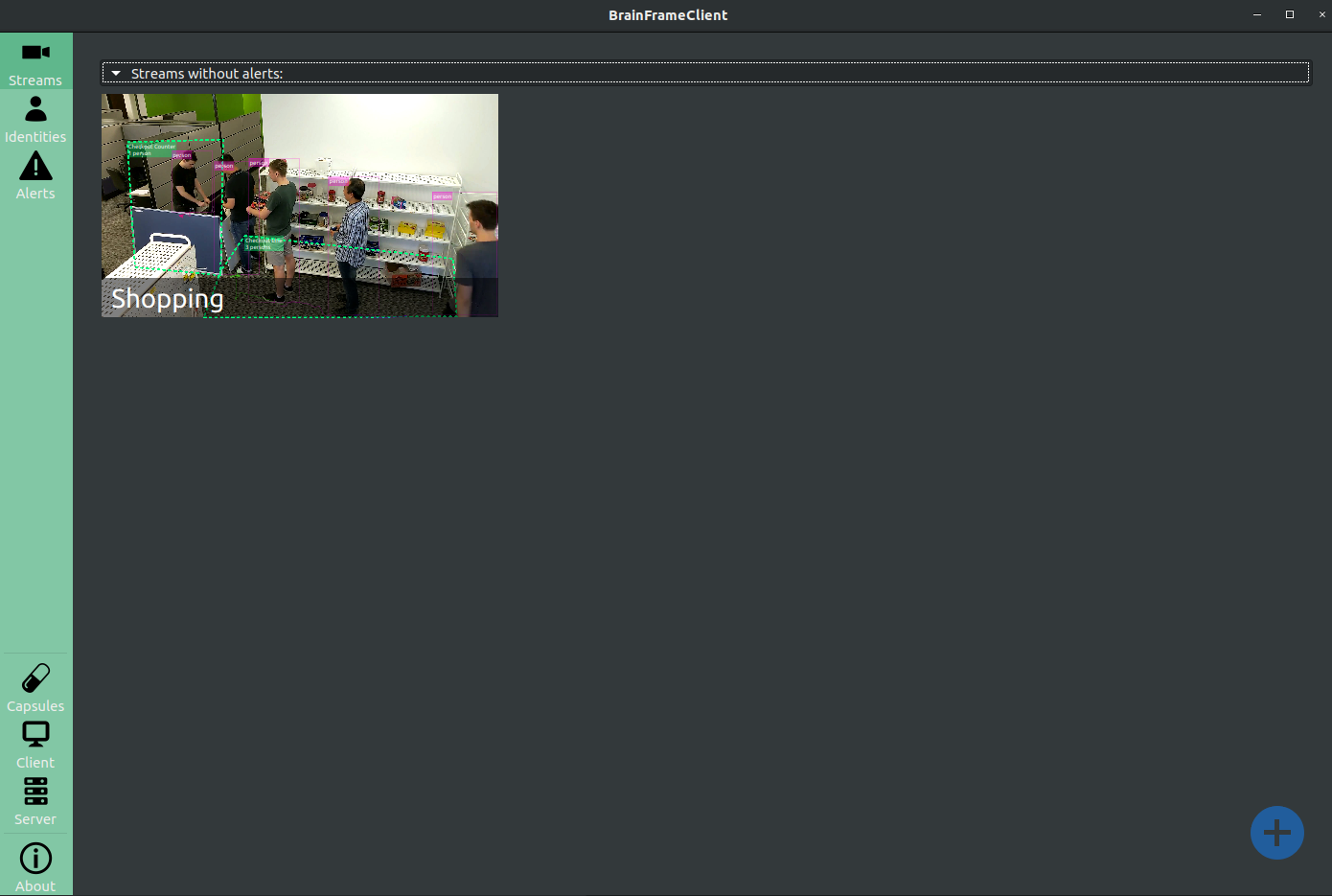
If you click the video stream, you can get to a maximized view with more options:
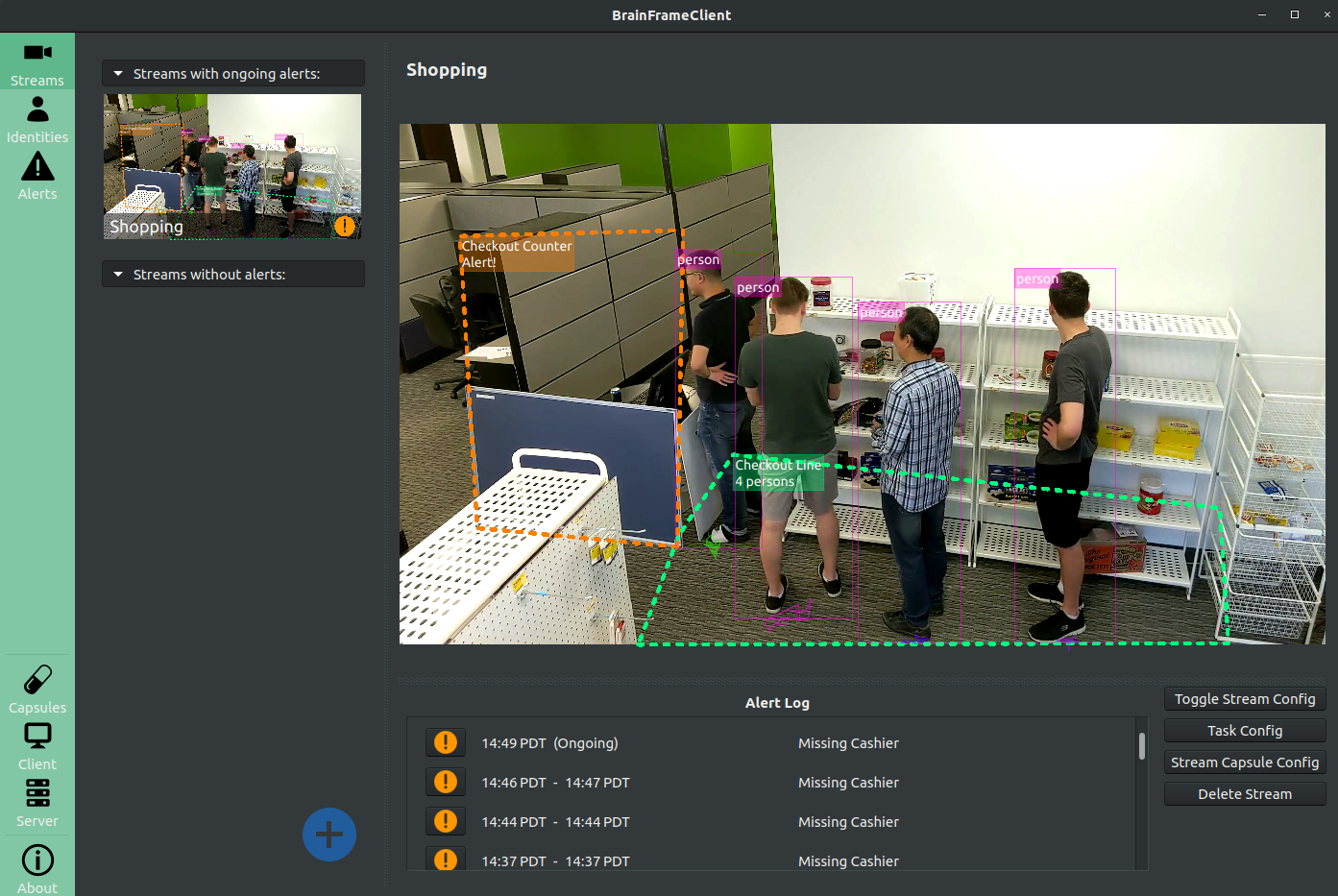
This will provide an expanded view of the video, allowing you to better inspect the stream, and to change configuration relating to the stream.
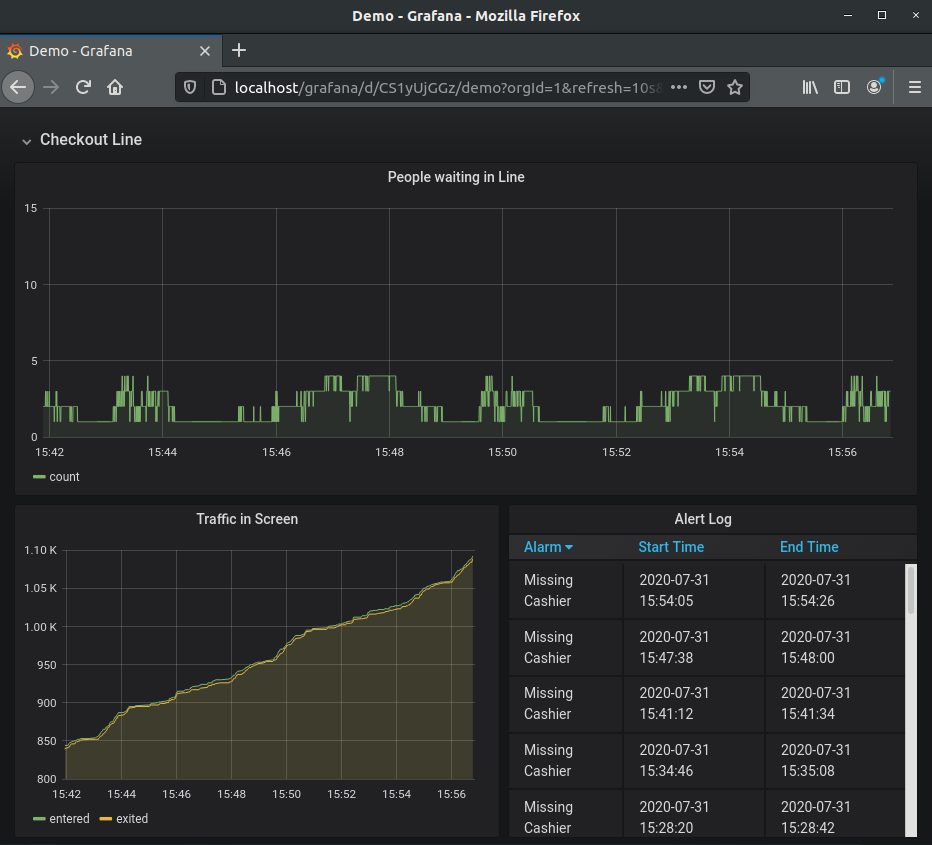
Now, if you open Firefox, on the second tab there will be a dashboard
showing realtime analytics for the demo video. This can also be accessed by
going to the url http://localhost. The username/password for the dashboard is
admin/devkit.
Updating the Devkit
Before going any further, let's make sure the devkit is up to date!
Info
The default password for the devkit is devkit
Update system packages
sudo apt update && sudo apt upgrade
Update the BrainFrame CLI
sudo -H pip3 install --upgrade brainframe-cli
Update the BrainFrame Server
sudo brainframe update
Update the BrainFrame Client
To update the interface, download the latest
Ubuntu client. Then, install it by running the following,
after replacing YOUR_DOWNLOADED_ZIP_HERE with the path to the downloaded
client zip:
unzip -o -q YOUR_DOWNLOADED_ZIP_HERE -d ~/brainframe/brainframe_client/
Configure your own Stream
Setting up your first camera
Try adding a webcam! First, plug in the webcam and restart the server to make sure that Docker can see the camera. To restart the server, run:
brainframe compose down && brainframe compose up -d
To add the camera, follow the instructions here,
and select the webcam option on the dropdown. To determine the ID of the
webcam, you will need to run ls /dev/ | grep video. You should see video0
or something similar. If the result is video0, then put 0 into the client
webcam textbox. The ID will probably be 0 if there is only one webcam
connected.
Changing the Capsule Configuration
By default the devkit ships with the capsules necessary to run the preloaded demo:
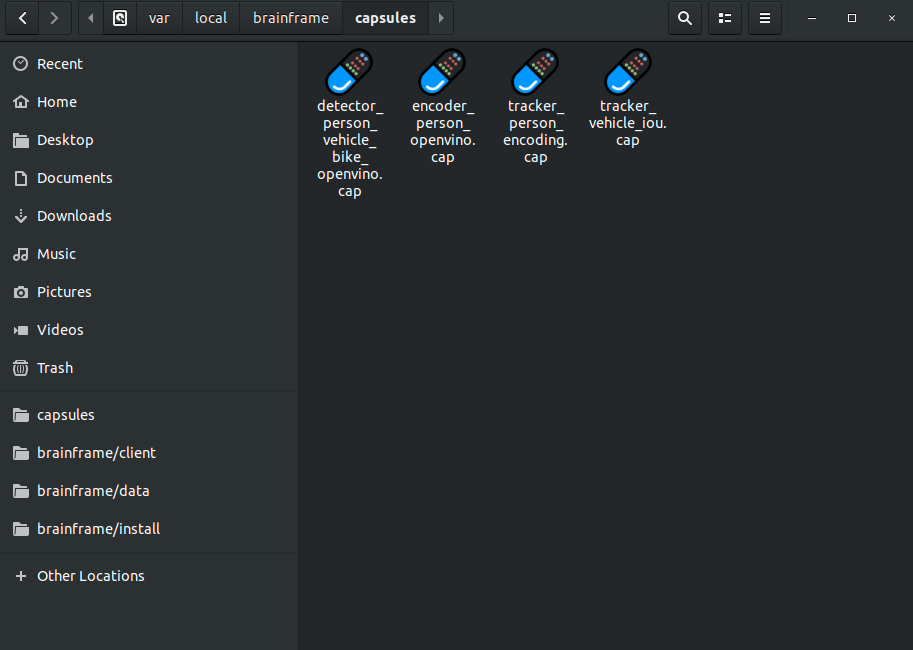
These capsules can be found in the capsules directory, which is in
/var/local/brainframe/capsules. More information about loading new capsules
can be found in our 'Using Capsules' tutorial.
General Usage
Controlling the Server
More information about general usage of the CLI can be found here.
To stop the server
brainframe compose down
To start the server
brainframe compose up -d
To restart the server
brainframe compose down && brainframe compose up -d
Advanced
Server Configuration
For all of the possible server configuration variables, refer to
here. On the devkit, the .env file
is in /usr/local/share/brainframe/.env
cat $(brainframe info install_path)/.env
AI accelerator configuration allows you to customize
which AI accelerator your capsules use. NVIDIA GPU is enabled if it is available.
AI accelerators can be enabled on Intel chipset with OPENVINO_DEVICE_PRIORITY
environment variable setting. By default, it is set to HDDL,CPU, meaning that all
capsules will load onto the HDDL and CPU devices, giving priority to HDDL. Since the
devkit has 2 MyriadX devices, this means that having more than 2
OpenVINO capsules will make the inference run slowly. If you want to
experiment loading many capsules, set OPENVINO_DEVICE_PRIORITY=CPU.