AI Marketplace
The VisionCapsules® AI Marketplace is a web application for managing the capsules of a BrainFrame server. It is installed with BrainFrame. Use it to:
- Browse and download capsules that are published on the aotu.ai website.
- Upload capsule files (
.cap) that you built or received. - Load capsules into the BrainFrame server, and unload them.
- Enable or disable loaded capsules, and change their options.
For what a capsule is, see Capsule Options. To write your own capsule, see the VisionCapsule documentation.
Open the AI Marketplace
To open the AI Marketplace, type the IP address of the BrainFrame OS server in a browser to open the BrainFrame Web Client. Once connected, click the Developer button at the bottom left to bring up the Developer References menu, then click VisionCapsules® AI Marketplace.
You can also open it directly in a browser:
http://<your-server-ip>:9090
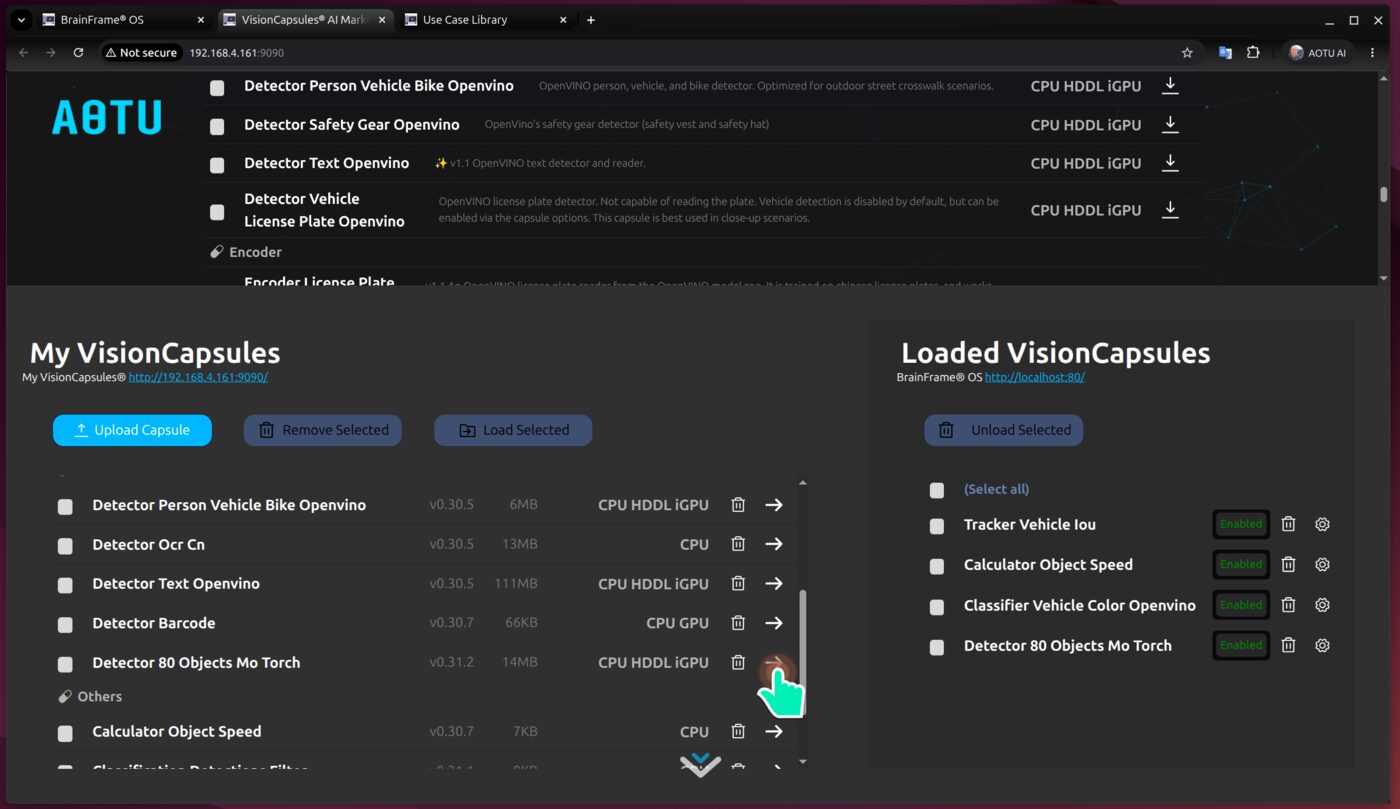
The page has two parts. The top part, Explore VisionCapsules, is the marketplace. Scroll down, or click the arrow at the bottom of the page, to open the lower part, which has two lists:
| List | Contents |
|---|---|
| My VisionCapsules | The capsule files that are stored on the server. These are capsules you downloaded or uploaded. They are not yet running. |
| Loaded VisionCapsules | The capsules that the BrainFrame server has loaded. Only loaded capsules can run on streams. |
Note
The two lists in the lower part need a browser window at least 1460 pixels wide. On a narrower window they are replaced by a warning.
A capsule moves through three steps: download it from the marketplace into My VisionCapsules, load it into BrainFrame, and then enable it for your streams.
Download Capsules
The marketplace lists the capsules grouped by type: Classifier, Detector, Encoder, Tracker, OCR, and Others. Each row shows the capsule name, its description, and the hardware it runs on. Capsules marked with ✨ are recommended as production-ready.
| Hardware | Meaning |
|---|---|
CPU |
Runs on any processor. |
GPU |
Runs on NVIDIA GPUs. |
iGPU |
Runs on Intel integrated graphics, through OpenVINO. |
HDDL |
Runs on MyriadX devices, through the OpenVINO HDDL plugin. |
Hover over a capsule name to see its details, such as the input it needs and the detections it produces.
To download:
- Click the download icon at the end of a row to download one capsule.
- Or tick the check boxes of several capsules, and click Download Selected.
Downloaded capsules appear in My VisionCapsules. A capsule that is already there can not be downloaded again. Remove it first if you want to download it again.
Note
The list of capsules is read from aotu.ai/docs/downloads, so the server needs access to the internet to show the marketplace and to download capsules. On a server with no internet access, upload capsule files instead, as described below. See Offline Deployment.
Upload a Capsule
To add a capsule file that you have on your computer:
- In My VisionCapsules, click Upload Capsule.
- Choose the
.capfile. - Enter the Version, for example
v0.30.8. This is required, and is used to keep different versions of the same capsule apart. - Select the Chipset that the capsule supports.
CPUis always selected. AddiGPU,HDDL, orGPUif the capsule uses them. - Click the upload button of the dialog.
A file with the same content as a capsule already in My VisionCapsules is rejected as a duplicate.
Load Capsules into BrainFrame
In My VisionCapsules:
- Click the right arrow at the end of a row to load one capsule.
- Or tick several capsules and click Load Selected.
The capsule is sent to the BrainFrame server. Loading can take a while, because the server prepares the model. A progress message is shown, and the page cannot be used until it finishes. When it is done, the capsule appears in Loaded VisionCapsules.
If the BrainFrame server can not be reached, loading fails with an error. Check that the server is running.
Manage Loaded Capsules
Each loaded capsule has these controls:
| Control | Action |
|---|---|
| Enabled / Disabled | Turn the capsule on or off for all streams. A disabled capsule stays loaded. |
| Trash icon | Unload the capsule from BrainFrame. |
| Gear icon | Open the capsule's options, to change its settings. |
To unload several capsules, tick them and click Unload Selected.
The options are the same as those in the Web Client. Changes take effect for all streams. To set options for one stream only, use the stream's capsule configuration in the Web Client. See Capsule Options.
Note
Capsules that BrainFrame loaded from its capsule directory, rather than through the AI Marketplace, are shown in the list too. They can be enabled, disabled, and configured, but they can not be unloaded here. To remove them, remove the files from the capsule directory.
Remove Capsules from My VisionCapsules
To delete a capsule file from the server, click the trash icon in its row, or tick several and click Remove Selected. This removes the file only. A capsule that is already loaded stays loaded until you unload it.
Where the Data Is Kept
The AI Marketplace runs as the marketplace service in the BrainFrame docker-compose.yml. It listens on port 9090.
The downloaded capsule files and the list of capsules are stored in the BrainFrame data volume, in the
volumes/marketplace directory, and are kept when BrainFrame is restarted.
The AI Marketplace manages the BrainFrame server that it runs alongside, and connects to it through the BrainFrame REST API.